Your product pages are fast because a cache serves them. Your checkout is slow because nothing can. WooCommerce's own documentation says the cart, the checkout and the account pages must stay dynamic. So every one of those loads runs your theme, your database and every plugin you have ever installed. It runs on whatever server you pay for, at the exact moment a customer is holding a card. The storefront I built loads in 0.9 seconds with no plugin stack at all, and that number is what this guide is about.
"WooCommerce checkout slow" is the search people type after they have installed a caching plugin and watched nothing change. This is why the cache cannot help you on that page, and what a slow checkout costs. Then what is actually slow, in the order it usually matters, what I strip, and when the honest answer is to leave WooCommerce.
The short version A page cache serves your product pages and cannot serve your checkout, because the checkout is different for every customer. So the checkout's speed is your server's speed plus every plugin, in the order they load. Count the plugins, count the scripts from other domains on the checkout, and measure the time to first byte. Remove what does not earn its place on that page, put an edge cache in front of everything that can be cached, and aim for a largest paint under 2.5 seconds on a phone.
Why the checkout is the slowest page on the store#
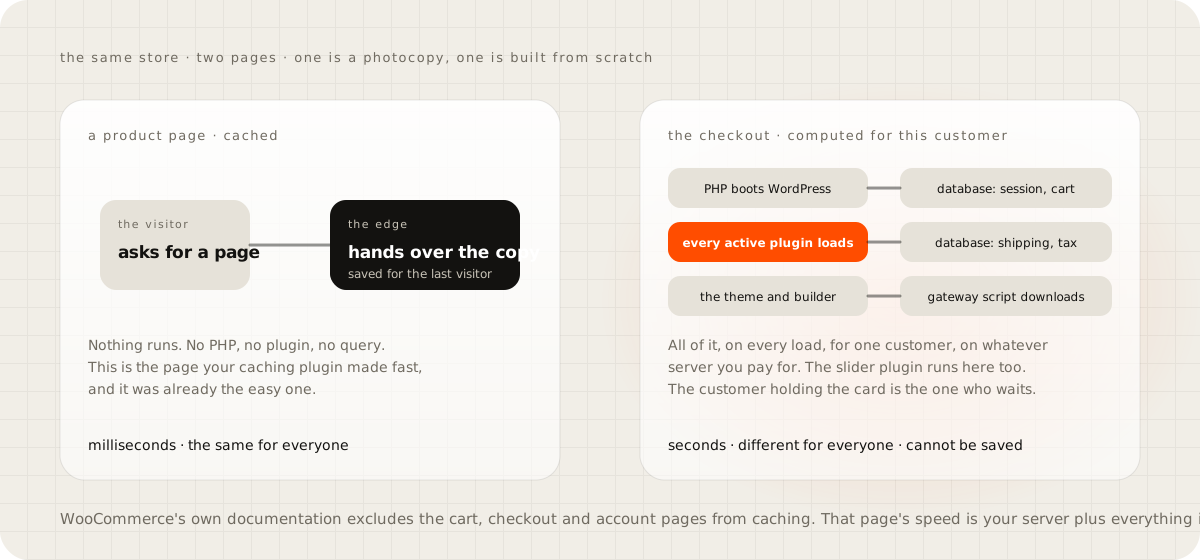
A cache is a saved copy. When a visitor asks for a product page, the server hands them the copy it saved for the last visitor, and nothing runs. The checkout has no last visitor. It shows this customer's items, this customer's shipping options and this customer's total, so there is nothing to save and hand over. WooCommerce's developer documentation is explicit. The cart, my account and checkout pages must be excluded from caching, because they display information specific to the current customer and their cart. The cookies that track a cart, the session and the item count, must not be cached either.
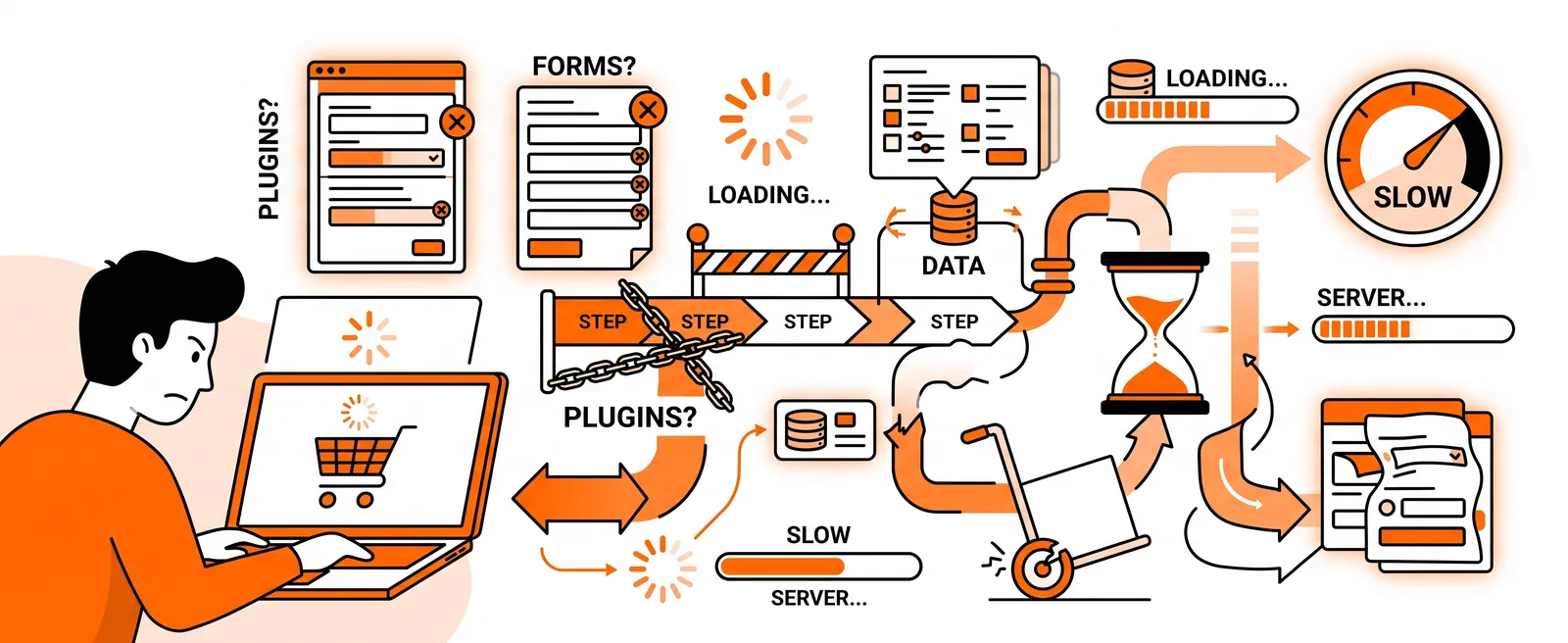
So every checkout load does the whole job from scratch. PHP starts WordPress. WordPress loads every active plugin, the slider, the SEO tool, the pop-up, the backup scheduler, whether or not they have anything to do with buying.
Then the database is asked for the session, the cart, the shipping zones, the tax rules and the payment methods. Then the browser downloads the payment gateway's own scripts. The product page skipped all of that. The checkout pays for all of it, and the customer with the card out is the one who waits.
What a slow checkout costs#
Most carts are abandoned. Baymard Institute's running average across 50 studies is 70.22 percent. Much of that is browsing. Among people who abandoned for a reason, Baymard's own survey puts extra costs first at 40 percent, then slow delivery at 20, then not trusting the site with a card at 19. A forced account follows at 18, a long checkout at 17, and a site that had errors or crashed at 17. Speed sits inside two of those lines. A checkout that stalls looks like a site that is crashing, and a page that hangs while you type a card number is a page you stop trusting.
The threshold I hold a checkout to is Google's. web.dev says a good Largest Contentful Paint is 2.5 seconds or less, measured at the 75th percentile of page loads, on mobile as well as desktop. Anything past 4 seconds is poor. Most WooCommerce stores miss it. The 2024 Web Almanac puts WooCommerce at 35.8 percent of all ecommerce sites it could identify, and on mobile only 34 percent of them pass the LCP threshold. The same report's CMS chapter has 40 percent of WordPress sites passing Google's three speed measures on mobile in 2024, up from 28 the year before. The median WordPress page carries 528 KB of JavaScript on a phone.
I have not run a controlled test tying a client's checkout speed to their abandonment, and I would not trust a vendor page that claims to have. The studies above are the closest honest numbers I can give you, and they all point the same way.
What is actually slow, in the order it usually matters#
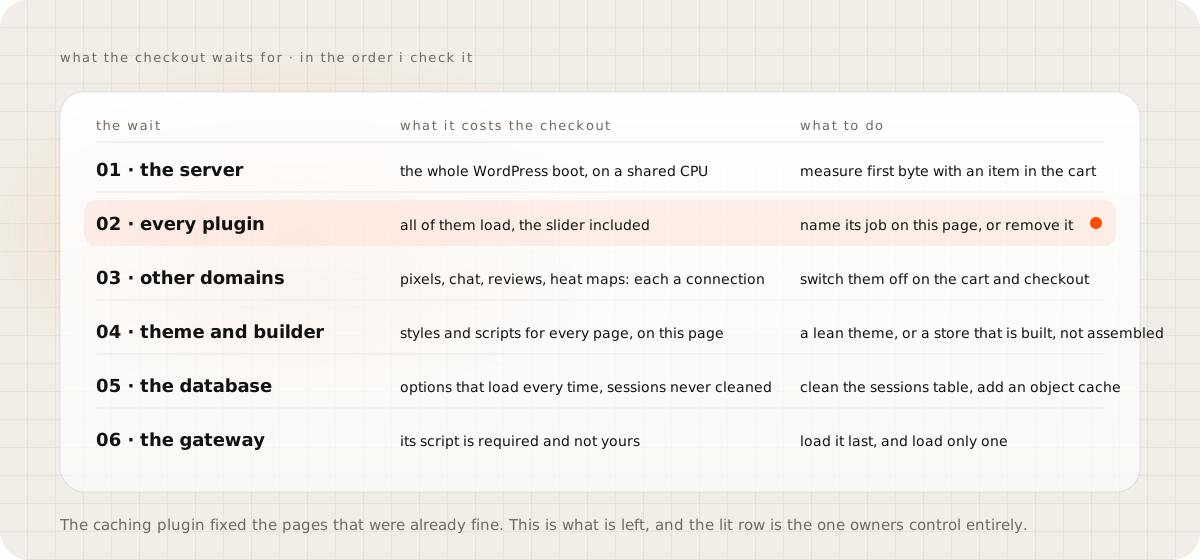
The shortcut people take is a caching plugin, and it fixes the pages that were already fine. Here is what is left when it has done its job, in the order I check it.
The server comes first. On the checkout, the time to first byte is the whole of WordPress booting plus every query, on a processor you may be sharing with hundreds of other sites. Measure it with an item in the cart. If the first byte takes more than a second, nothing you do in the browser will save the page.
Then the plugins, every one of them, because every active plugin loads on every uncached request. The one that adds a slider to the homepage still loads its code on the checkout. The cart fragments call that keeps the little cart icon up to date fires on every page as well.
Then scripts from other domains: the analytics tag, the ad pixels, the chat widget, the review badge, the heat-map recorder. Each is a new connection and a download, and on a phone on a weak signal they are often the largest thing painted. None of them sells anything on the checkout.
Then the theme and the page builder, which ship their styles and scripts to every page whether the page uses them or not. Then the database: options that load on every request, a sessions table that has never been cleaned, expired transients. And last the payment gateway's script, which you cannot remove and can only load as late as possible.
What I strip, and what the store runs at#
The storefront on the homepage loads with a largest paint of 0.9 seconds, scores 100 on SEO and A+ on security headers, and every pixel in that frame is the build. It has no page builder, no theme bought off a marketplace, and no plugin stack, because it was built rather than assembled. That is not a fair comparison with a WooCommerce store, and I am not pretending it is. It is the ceiling, so you know what a fast store feels like before you decide how close you want to get.
The page you are reading is built the same way, and its numbers are on the homepage too. 15 KB of JavaScript, compressed, for the whole page with the demos included. Zero requests to third-party domains, zero cookies, and eight security headers. The analytics are first party and need no consent banner, which is its own guide, on owning your customer data.
On a WooCommerce store you cannot get to zero plugins, and you should not try. My rule for the checkout is narrower. A plugin earns its place on that page only if it touches money, shipping or tax. The gateway stays. The shipping calculator stays. The tax service stays.
The pop-up, the review widget, the social feed and the chat bubble are switched off on the cart and checkout. If a plugin cannot be limited to the pages that need it, that is a reason to replace it. The quote-to-cart flow in the guide on instant quotes works on a lean checkout for exactly this reason. The price is computed before the customer reaches it, so the checkout has only the fields, the total and the button.
Managed or shared hosting#
Shared hosting is cheap because your PHP shares a processor with everyone else on the box, and the checkout is the page that notices. Managed WordPress hosting gives you a faster server and usually an object cache, and that is real money well spent on the pages that cannot be cached. What it does not do is make the checkout cacheable, and it does not remove a single plugin. Owners buy the upgrade, see the product pages get faster, and wonder why the checkout barely moved.
The arrangement I use is both halves. A fast origin for the pages that must be computed, and an edge cache in front of everything else. Cloudflare's cache rules let you bypass the cache when a cookie is present. A request carrying a WooCommerce session cookie goes to the server, and every other request is served from the city nearest the visitor. The edge does nothing for the checkout request itself. It frees the server from serving product pages, so the server has nothing to do but checkouts, and does them faster.
"I need those plugins"#
Count them, and next to each one write the job it does on the checkout in one sentence. Most lists I have been shown run to dozens of entries and fewer than ten sentences, and I have never met an owner who could name the job of every plugin on their store. The ones you cannot name go today. The ones that do marketing work on other pages get limited to those pages. The ones that touch money, shipping or tax stay, and now you know why each one is there.
The objection underneath is usually that a plugin was installed to fix something once, and nobody remembers what. That is the plugin to remove first, on a staging copy, with the checkout tested after. A plugin whose absence nobody notices for a week was never doing anything.
When to leave WooCommerce#
Shopify's checkout is fast because you cannot install anything on it, and the Web Almanac has had its LCP pass rate consistently strong since 2022. You pay for that with a monthly fee and a percentage of every sale, and you give up the custom flows, so the trade is real. The guide on the real monthly cost of a small online store puts the numbers on it. Leave when your store's problem is the platform's shape, when you know you will never keep the plugin list short because the business depends on three heavy ones. Stay when you want a checkout your own quote engine feeds and a store you own outright, and treat the plugin list as a discipline rather than a one-off clean-up.
Measure your checkout this week#
Put one item in the cart on your own store, open the checkout on your phone, and write down three numbers. The time to first byte, from the browser's network panel. The number of requests to domains that are not yours. The number of active plugins. Then remove one plugin a day that cannot name its job, and measure again on Friday.
The checkout speed test reads the first two numbers from your checkout for you, with the plugins it can see named, and puts the store I run beside them. Open the storefront I built, add a kit, and time the same checkout, so you know where the ceiling is.
Questions people ask
Why does a caching plugin not speed up the WooCommerce checkout?
Because the checkout is excluded from the cache on purpose. WooCommerce's own documentation says the cart, checkout and account pages must stay dynamic, since they show one customer's items and totals. A cache serves saved copies, and there is no saved copy of your checkout.
How fast should a checkout load?
Under 2.5 seconds to the largest paint, on a phone, for three quarters of your visitors, which is the threshold web.dev sets for a good Largest Contentful Paint. The storefront on my homepage loads in 0.9 seconds. Past 4 seconds the page counts as poor, and on a checkout that reads as broken.
How many plugins is too many for WooCommerce?
There is no magic number, and I distrust anyone who gives one. Every active plugin runs on every checkout load, so the honest test is whether you can say in one sentence what each one does on that page. The ones that touch money, shipping or tax stay. The rest belong on other pages, or nowhere.
Is managed hosting worth it for a WooCommerce store?
It buys a faster server for the pages that cannot be cached, and that is real. It does not make the checkout cacheable, and it does not remove a single plugin. Pair a fast origin with an edge cache for everything else, and cut the plugin list first, because that is free.
Should I move to Shopify to fix a slow checkout?
Only if the slowness is the platform's shape rather than your choices. Shopify's checkout is fast because you cannot install anything on it, and you pay for that with a monthly fee and a cut of each sale. If you want a checkout your quote calculator feeds and a store you own, fix the WooCommerce one.
Sources
- How to configure caching plugins for WooCommerce, WooCommerce developer documentation
- Largest Contentful Paint, web.dev
- Cart abandonment rate statistics, Baymard Institute
- Ecommerce, Web Almanac 2024, HTTP Archive
- CMS, Web Almanac 2024, HTTP Archive
- Bypass cache on cookie, Cloudflare cache rules documentation