Robots.txt and sitemap.xml are two small files that search crawlers look for on your site. Robots.txt, at the root of the domain, says which paths they may crawl. Sitemap.xml lists the addresses you want them to find, and one line in robots.txt points to it.
Most platforms write both files and that line for you, so the work is rarely adding them. It is checking that they agree. The trouble owners meet is a sitemap listing pages that robots.txt blocks, a Sitemap line pointing to a file that is not there, or a blocked page that Google indexes anyway. Below is a check you can run by hand, the fixes, and the change coming to styled sitemaps in Chrome on 17 November 2026.
What robots.txt and sitemap.xml each do#
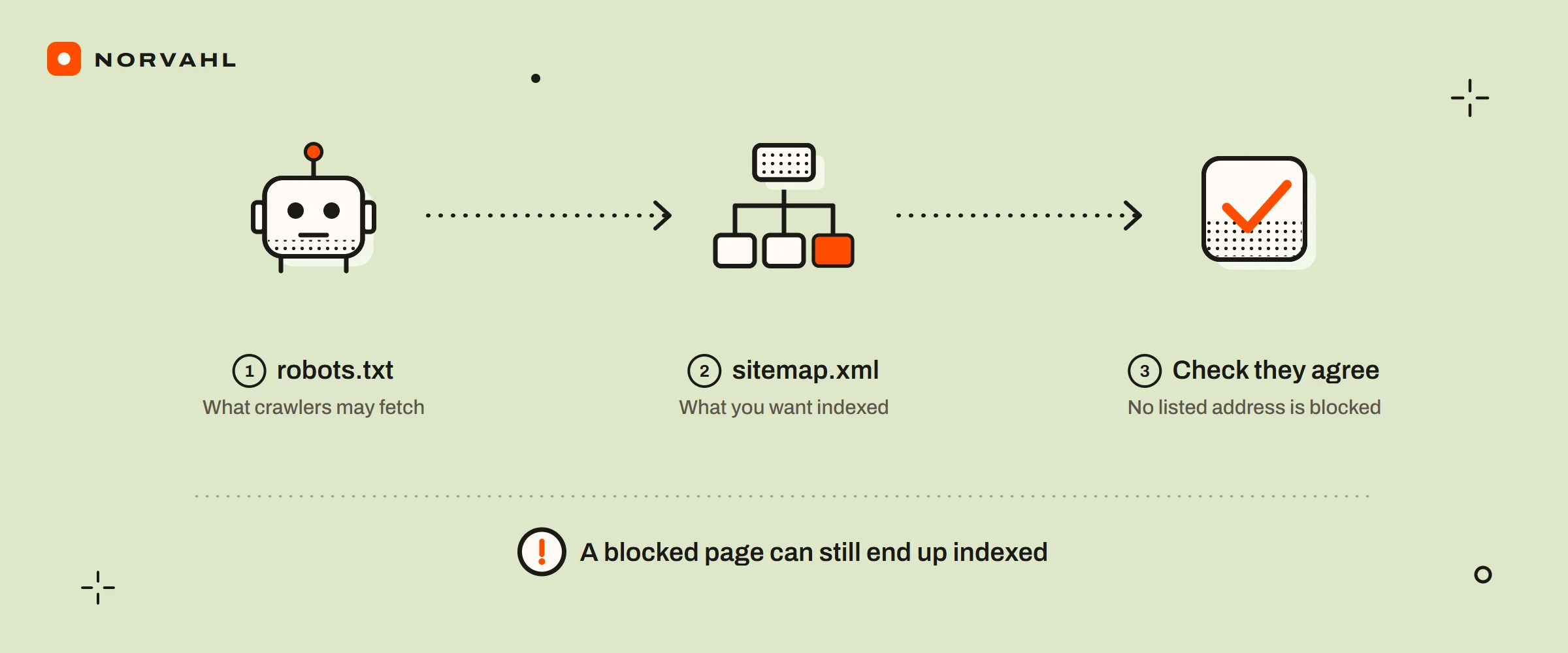
Robots.txt manages crawling. Google's introduction to robots.txt says it is not a mechanism for keeping a web page out of Google, and that a page disallowed there can still be indexed if other sites link to it. The file must sit at the root of the host it applies to, a site has only one, and a subdomain needs its own. Obeying it is voluntary: Cloudflare's documentation says compliance is voluntary and that the file does not stop a crawler reaching your content.
Sitemap.xml is a list of addresses. Google's sitemap guidelines allow up to 50,000 URLs or 50MB uncompressed in one file, and ask for full, absolute addresses of the canonical pages you want in search. Google ignores the priority and changefreq tags, and uses lastmod only when it is consistently accurate. A larger site splits its list across several sitemaps under an index file.
The Sitemap line in robots.txt connects the two, so a crawler that reads your rules also finds your list. Google accepts a sitemap through that line, through Search Console, or through the Search Console API.
How to add your sitemap XML to robots.txt#
The line is the word Sitemap, a colon and the sitemap's full address:
Sitemap: https://www.example.com/sitemap.xml
Google's robots.txt guide sets three rules for it. The address must be complete, because Google does not try the http, https, www or non-www versions for you. A file can carry any number of Sitemap lines. And the line belongs to no user-agent group, so it works anywhere in the file, though Google's own example puts it last.
Before you add it, check whether it is already there, because most platforms write it:
- Shopify gives every store a default robots.txt that its help page says works for most stores, and it already points to the store's sitemap at /sitemap.xml. You can change the file through a robots.txt.liquid template. Shopify calls that an unsupported customization that can result in loss of all traffic if it goes wrong, and deleting the template restores the default.
- WordPress has had its own sitemap in core since version 5.5, at /wp-sitemap.xml, and its generated robots.txt points to it.
- Yoast SEO and Rank Math replace that sitemap with /sitemap_index.xml and add their own Sitemap line. Rank Math's guide says it adds the line by default, and to list the index rather than each child sitemap.
Add the line by hand when:
- your site is static or custom-built;
- you have a sitemap the platform does not know about;
- the sitemap is hosted on another address, which the sitemap protocol allows when the line sits in the robots.txt of the site whose pages it lists;
- a real robots.txt file sits in your WordPress root folder.
That last case is easy to miss. WordPress only generates its robots.txt when no real file exists, so a file left behind by a developer, a host or an old plugin replaces the version that carried the Sitemap line.
Why a blocked page can still be indexed#
Blocking a page in robots.txt stops Google from crawling it, not from indexing it. Google's page on blocking indexing says that when robots.txt blocks a page, the crawler never sees its noindex rule, and the page can still appear in results if other pages link to it. Search Console reports those pages as Indexed, though blocked by robots.txt. Google's advice for any page that must leave search is to remove the block and use noindex instead.
Owners meet it in three places:
- Shopify cart and account pages. Shopify's default robots.txt blocks them, links to them still exist, and the status appears. In one Shopify Community thread, an owner asked why Google kept indexing pages Shopify blocks by default. Nobody searches for those pages, and the default is what Shopify recommends for most stores, so the status on them is usually safe to leave.
- WooCommerce stores that add Disallow lines for the cart, checkout or account pages, as some guides suggest. If those pages carry a noindex tag, the Disallow hides it from Google.
- Staging copies. A staging site with
Disallow: /can still be indexed through any link to it. Google's advice is noindex or a password, and a password also keeps people out.
WordPress changed its own setting for the same reason. Since version 5.3, Discourage search engines from indexing this site adds a noindex tag instead of writing a Disallow rule into robots.txt, a change the WordPress core team explained in 2019 with exactly this problem. So a WordPress site whose live robots.txt says Disallow: / got that line from a real file, a plugin or the host.
Check robots.txt and sitemap.xml together#
The check reads both files the way a crawler does. By hand, it goes like this:
- Open yourdomain.com/robots.txt in a browser. Note every Sitemap line, and the Disallow and Allow rules in the group for all crawlers, or in a Googlebot group if the file has one.
- Open each Sitemap address. It should load as XML, not as a web page or an error. If it is an index that lists other sitemaps, open those too.
- Check that the addresses in the sitemap use the same protocol and host as the Sitemap line: https with or without www, but not a mix.
- Test the addresses against the rules. A rule blocks an address when the address starts with the rule's path, and rules can use * as a wildcard and $ for the end of an address. When an Allow and a Disallow both match, the longer rule wins, and Allow wins a tie.
- Look at the top of the sitemap file for an xml-stylesheet line, which matters for the Chrome change below.
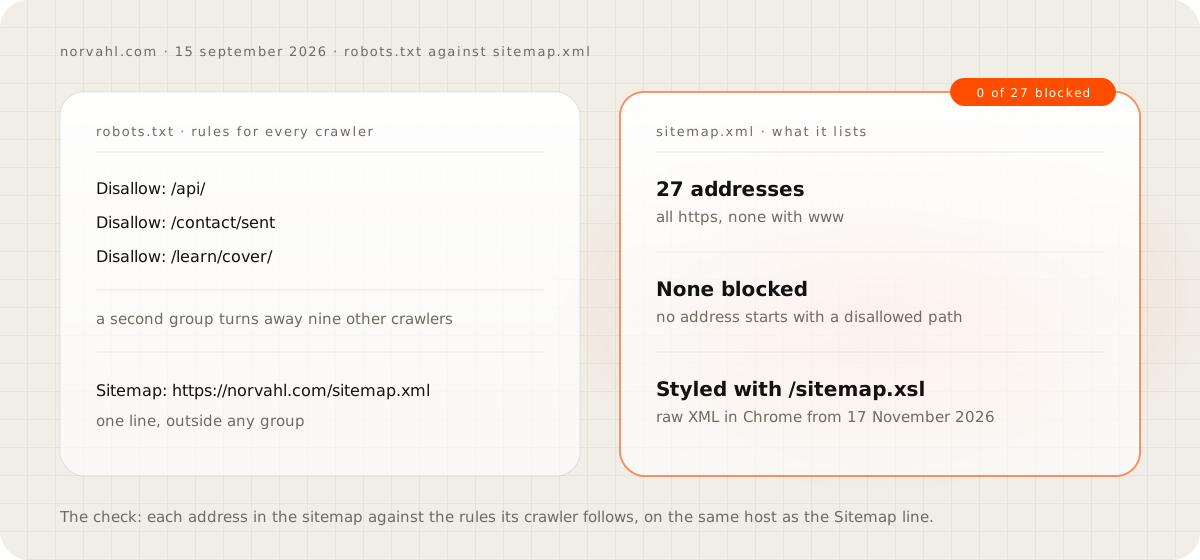
I ran this on my own site on 15 September 2026. Norvahl.com's robots.txt has two groups: one for every crawler, which disallows /api/, /contact/sent and /learn/cover/, and one that turns away nine named crawlers. Its one Sitemap line points to https://norvahl.com/sitemap.xml. That sitemap lists 27 addresses, all on https without www, and none starts with a disallowed path, so robots.txt blocks none of them. The same fetch showed that the sitemap is styled with /sitemap.xsl.
Doing that for a store with thousands of addresses is not a job for a browser. My sitemap checker reads both files for any site and tests every sitemap address against the robots.txt rules for Googlebot. It also flags problems in the sitemap file itself, such as duplicate addresses, badly formatted dates and unescaped characters.
Sitemap could not be read, and other Search Console errors#
Search Console's Sitemaps report lists only sitemaps submitted through the report or the Search Console API. A sitemap Google knows only from your robots.txt line never appears there, so a broken line can go unnoticed. Submit your sitemap in the report once, and do the same in Bing Webmaster Tools.
The messages worth knowing:
- Couldn't fetch, with the message Sitemap could not be read, means Google failed to fetch the file, and the details page gives the reason. Check that the address opens as XML with a 200 status, sits on the same protocol and host as your property, and is not blocked. On Shopify, also check that the store is not password protected.
- URL not allowed means the sitemap lists addresses at a higher level or on a different domain than the sitemap file.
- Blocked by robots.txt, in the Page indexing report filtered to submitted pages, is the conflict the check above finds.
The robots.txt report, available for domain-level properties, shows the robots.txt files Google found for your top 20 hosts, when it last crawled them and any errors. It also lets you request a recrawl after a fix. To test a single address, use URL Inspection.
There is no ping any more. Google announced in June 2023 that its sitemap ping was going away, and its current sitemap guidelines list Search Console, the Search Console API and the robots.txt line, with no ping. Any tool that still offers to ping Google is out of date.
Cloudflare and your robots.txt#
If your site runs through Cloudflare, the robots.txt crawlers receive may not be the file your platform writes. Cloudflare's managed robots.txt, available on all plans, can place its own lines in front of your file, such as content signals and Disallow rules for known AI crawlers. So always read the live /robots.txt, not the settings screen.
A second Cloudflare setting matters more. From 15 September 2026, Cloudflare says blocking AI training also blocks crawlers such as Googlebot, Bingbot and Applebot, and no robots.txt check can show a block that happens at the network. The guide on Cloudflare geo blocking covers where that setting lives. On 15 September, norvahl.com's robots.txt, which is served through Cloudflare, showed none of those added lines.
Why your sitemap shows as raw XML in Chrome from 17 November 2026#
WordPress core, Yoast and sites like mine style their sitemaps with an XSL stylesheet, which is why they look like a tidy table in a browser. Chrome is removing XSLT. Its announcement names Chrome 158, on 17 November 2026, as the release where XSLT stops working on stable, including the xml-stylesheet instruction sitemaps use. From then, Chrome shows those sitemaps as raw XML, and the same page says Firefox and WebKit have also indicated plans to remove XSLT.
The XML itself does not change. Joost de Valk, who founded Yoast, wrote on 10 September 2026 that the sitemap will still help search engines find your pages, and I found no Google page saying otherwise. The people who notice are the ones who open the sitemap to read it.
My own sitemap will change too. It is styled with /sitemap.xsl, which I chose on 6 September 2026 knowing Chrome drops the styling on 17 November. If people rely on your styled view, give them a normal page that lists your key pages, or remove the stylesheet line, as Joost suggests.
Questions people ask
How do I add my sitemap to robots.txt?
Add a line with the sitemap's full address, such as Sitemap: https://www.example.com/sitemap.xml. It belongs to no user-agent group, so it can sit anywhere in the file, and you can add one line for each sitemap. Shopify, WordPress core, Yoast and Rank Math usually write it for you.
Does robots.txt stop a page appearing in Google?
No. Google says robots.txt manages crawling and is not a way to keep a page out of Google. A blocked page can still be indexed if other pages link to it, and Google never sees a noindex rule on a page it is not allowed to crawl.
Why does Search Console say Sitemap could not be read?
Google could not fetch the sitemap. Check that the address opens as XML with a 200 status, sits on the same protocol and host as your Search Console property, is not blocked by robots.txt, and, on Shopify, that the store is not password protected.
Do I still need to ping Google when my sitemap changes?
No. Google announced in June 2023 that its sitemap ping was going away. Submit the sitemap once in Search Console and keep the Sitemap line in robots.txt.
Why does my sitemap show as raw code in Chrome?
Styled sitemaps rely on an XSL stylesheet, and Chrome 158 stops applying XSLT on 17 November 2026. The XML file itself does not change.
Sources
- Introduction to robots.txt, Google Search Central
- How to write and submit a robots.txt file, Google
- Block indexing with noindex, Google Search Central
- Build and submit a sitemap, Google Search Central
- Sitemaps report, Search Console Help
- robots.txt report, Search Console Help
- Page indexing report, Search Console Help
- Editing robots.txt.liquid, Shopify Help Center
- Changes to prevent search engines indexing sites, Make WordPress Core
- robots.txt setting, Cloudflare Docs
- Removing XSLT for a more secure browser, Chrome for Developers
- Why XML sitemaps are losing their pretty view, joost.blog